When you need to convert MBOX to PST
MBOX files are used by several email programs, including Thunderbird and Apple Mail. The problem starts when you want those emails in Outlook. Outlook can't import an MBOX file directly, so it has to become a PST first.
Usually this happens when you switch from Thunderbird to Outlook and want to keep your old emails. Or you downloaded your Gmail mailbox with Google Takeout and got an MBOX file. Or you exported emails from Apple Mail and now need them in Outlook.
Some people convert MBOX to PST simply to keep a separate backup of old emails, or to move archived messages into an Outlook profile.
Find your MBOX file
Where the MBOX file is depends on the email program or service it came from.
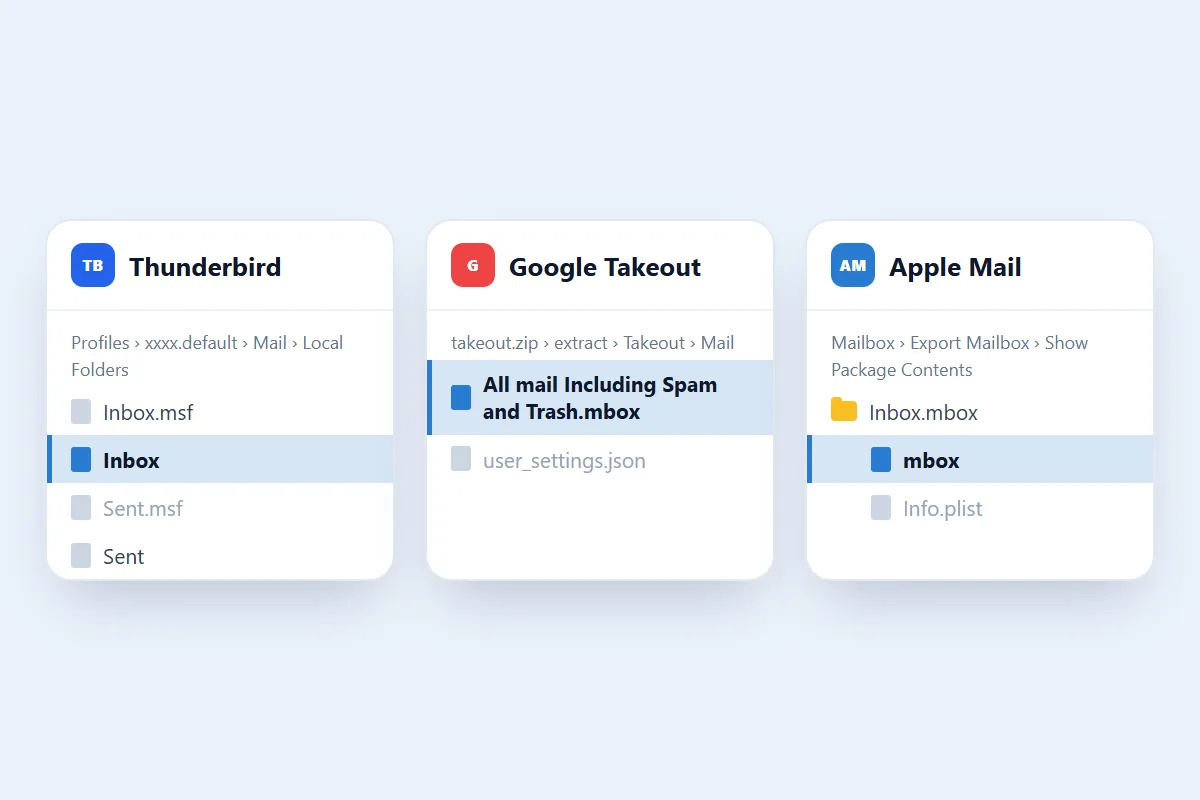
- Thunderbird: open the profile folder (in Thunderbird, Help > Troubleshooting Information > Profile Folder > Open Folder), then the Mail or ImapMail folder. Each mail folder is one file with no extension, such as
InboxorSent. Pick that file, not the.msffile next to it, which is only an index. - Google Takeout: extract the downloaded ZIP file, then open Takeout > Mail. The file is usually called
All mail Including Spam and Trash.mbox. - Apple Mail: look where you exported the mailbox with Mailbox > Export Mailbox. Apple Mail saves exports as
.mboxpackages. Open the package (right-click, Show Package Contents) and pick the file namedmboxinside it.
Once you have the file, select it in the MBOX to PST converter at the top of this page and click Convert to PST. When it's done, download the PST to your computer. There is no file size restriction, and you don't need to install anything or set up an email account.
What goes into the PST file?
The converter moves every email in your MBOX file into an Outlook PST file. Each email keeps its sender, recipients, date, subject, message body and the original internet headers.
Attachments stay with their emails, including documents, images and other files. Pictures embedded in the message body show up in place, and an email that was attached to another email arrives as a .eml attachment you can open with a double-click.
An MBOX file holds one mail folder, so the PST gets one folder with all of its emails, named after the MBOX file. Converting Inbox gives you an Inbox folder in Outlook. Thunderbird keeps each folder in its own file, so convert each folder you want and open the PST files side by side.
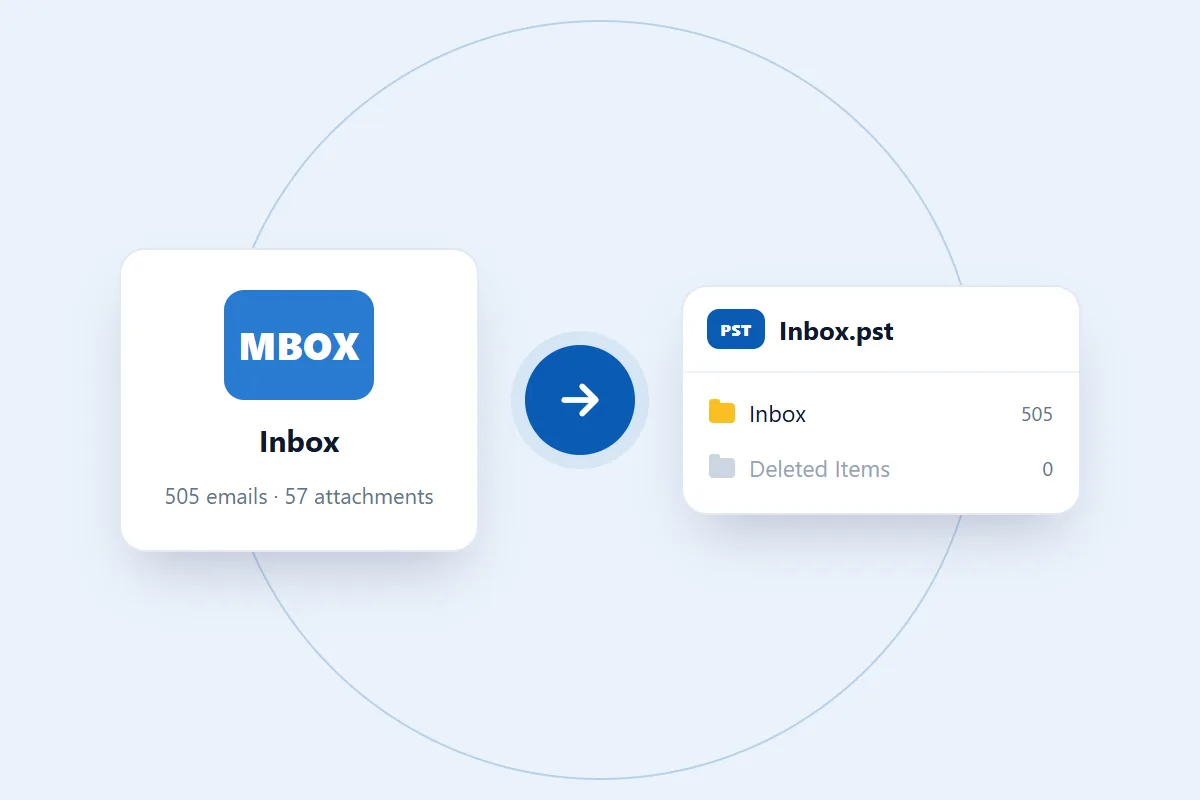
The PST is a separate copy of your MBOX emails that you can open in Outlook or import into an existing Outlook profile.
A few things worth knowing before you convert
- Email messages: the conversion covers the emails stored in the MBOX file.
- Attachments: original attachments come along with their messages.
- Folders: each MBOX file becomes one folder in the PST.
- No live sync: the PST is a converted copy. It won't receive new emails from your original mailbox.
- Original MBOX file: your source file stays unchanged.
- Other mailbox data: calendars, contacts, tasks and account settings aren't stored in an MBOX file, so they aren't part of the PST.
How long does the MBOX to PST conversion take?
It depends on the size of the MBOX file, how many emails it holds and how much attachment data there is. Small mailboxes finish in a second or two, and large ones take longer. In our tests an 11 MB Thunderbird folder with 505 emails converted in about a second, and a 237 MB MBOX with 2,761 emails took 16 seconds.
You can convert large MBOX files without a fixed size limit. When the conversion is done, download the PST to your computer. For a large mailbox we recommend a desktop or laptop rather than a phone, because it has more memory to work with.
How to open the converted PST in Outlook

Once the conversion is done, download the .pst file and open it in Microsoft Outlook. You don't need to convert again or connect to your old email account. These steps are for classic Outlook for Windows:
- Open Microsoft Outlook.
- Go to File > Open & Export > Open Outlook Data File.
- Browse to where you saved the converted PST file.
- Select the PST file and click OK.
- Outlook shows the data file in the folder pane.
- Expand it to see your converted emails.
To move these emails into your everyday Outlook mailbox, drag and drop folders or single messages. To bring in the whole PST at once, use File > Open & Export > Import/Export, choose Import from another program or file, then Outlook Data File (.pst), and follow the wizard.
On a Mac, Outlook imports it through File > Import and Outlook for Windows archive file (.pst).
How do we handle your email data?
An MBOX file can hold personal conversations, business emails and attachments, so your email data stays safe during the conversion. Your MBOX is used for one thing: building the PST you download. We don't read your emails, share them or use them for anything else. We also never ask for your email account or its password, because converting an MBOX you've already downloaded doesn't need them.
For more about how we handle data, read our privacy policy.
MBOX files and email programs we tested
MBOX is a mailbox format shared by many email programs, but each one writes it a little differently. We test the converter with real MBOX files to check that every email and attachment makes it into the PST.
- Mozilla Thunderbird: an 11 MB mail folder file with 505 emails and 57 attachments. The PST came out with all 505 emails and all 57 attachments.
- Large MBOX archive: a 237 MB MBOX with 2,761 emails and 1,906 attachments. Every email and attachment came through. It converted in 16 seconds in Chrome on a Windows desktop.
- Small export: an MBOX with 25 emails, which converted in a fraction of a second.
Every PST was read back to check that its email and attachment counts matched the MBOX. Gmail Takeout and Apple Mail exports use the same standard MBOX layout, but we haven't tested a file from either yet, so if one gives you trouble, tell us.
Common MBOX to PST conversion problems
1. "This looks like a … file, not an MBOX"
You may have picked the wrong file, a damaged mailbox or an archive that hasn't been extracted. Check that you are selecting the MBOX mailbox itself, not its ZIP archive. If it came from Google Takeout, extract the downloaded ZIP first. From Thunderbird, pick the file without an extension, not the .msf file.
2. Some emails are missing from the PST
If the PST has fewer emails than you expected, check the original MBOX first. The mailbox may not hold every message you were looking for, or some messages may be damaged. Open the MBOX in its original email program and compare the folder with the converted PST.
3. Attachments aren't showing in Outlook
Attachments don't appear as separate files or folders. They stay inside their emails. Open the email in Outlook and look at its attachment bar. If an attachment is missing, check whether it was in the original MBOX message.
4. The conversion stops before it finishes
Very large mailboxes, a browser tab that was closed or reloaded, or damaged source data can interrupt the conversion. Try again in an up-to-date Chrome, Edge, Firefox or Safari, ideally on a desktop or laptop, and keep the tab open until the download appears.
Still having trouble? Contact us and describe what you see. Please don't send private email content. We never need your mail to help.